
Admittedly, the Function that we created yesterday doesn’t do a whole lot more than respond to an incoming HTTP request with “Hello” and a name. Let’s add a little bit of complexity to our demo by creating a new function using Visual Studio.
Prerequisites#
- Visual Studio 2015 (Any Edition)
- Azure Subscription
- Azure 2.9.6 .NET SDK
- Visual Studio Tools for Azure Functions
- Node + NPM
- Azure Functions CLI
Download the “Hello World” Function#
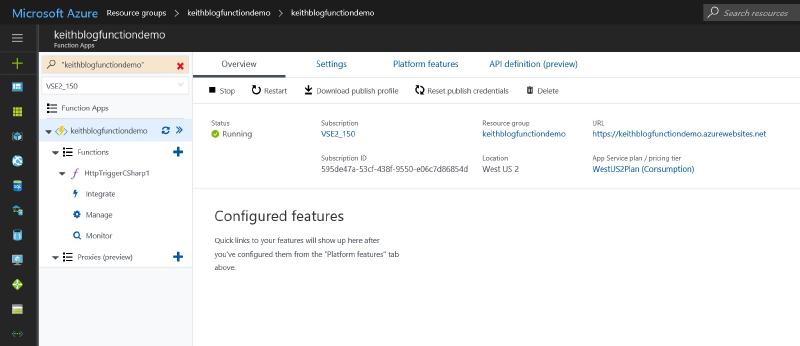
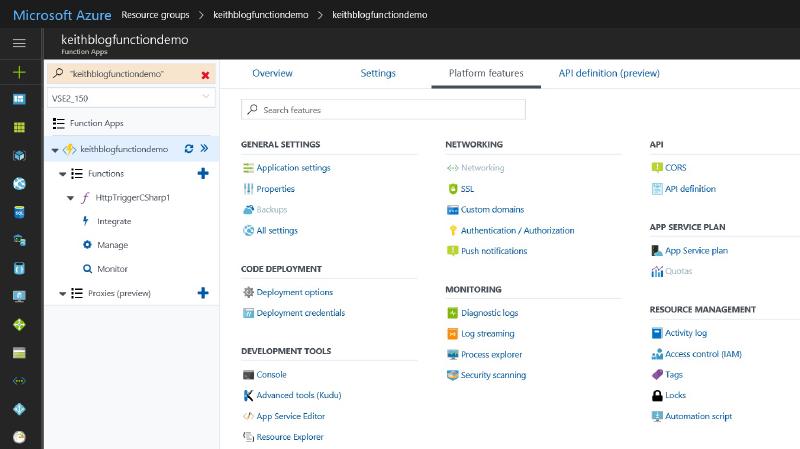
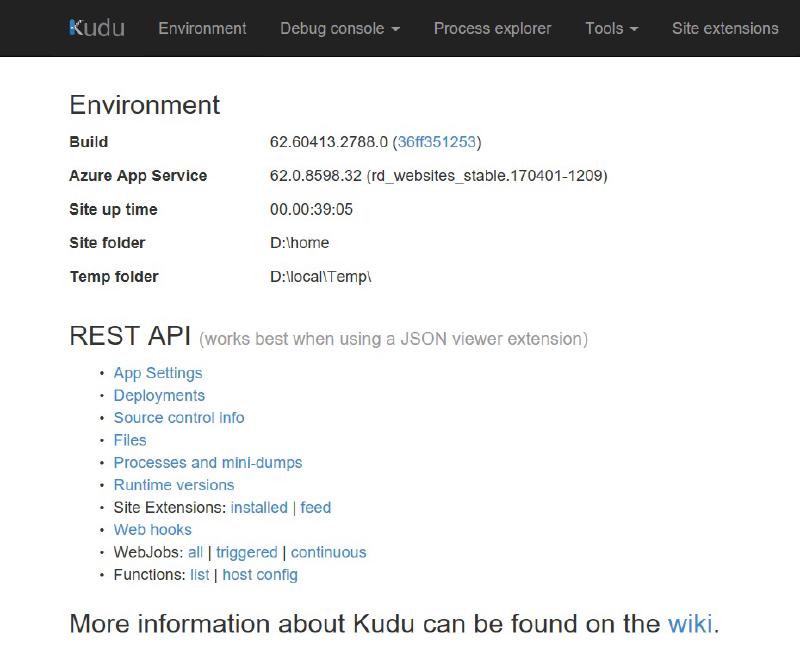
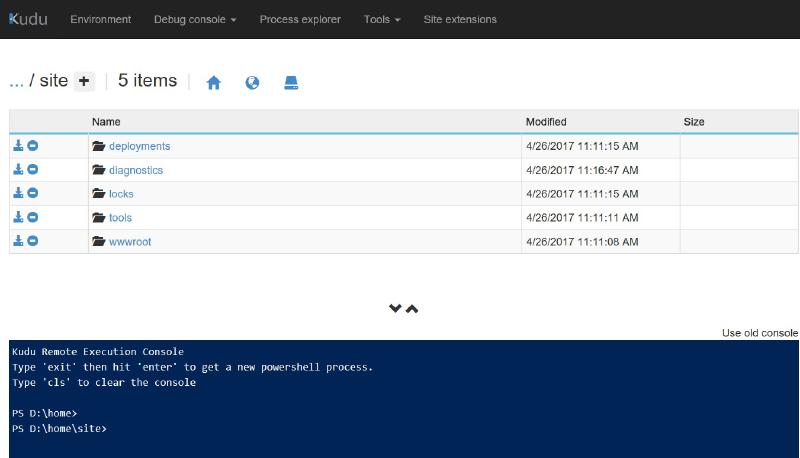
Navigate to your Azure Functions App in the portal. Click Platform Features → Advanced tools (Kudu) → Debug console → Powershell. Navigate to “site” and download the contents of wwwroot as a .zip file.
Adding our Hello Function to a Solution#
Create an empty solution in Visual Studio. You can either:
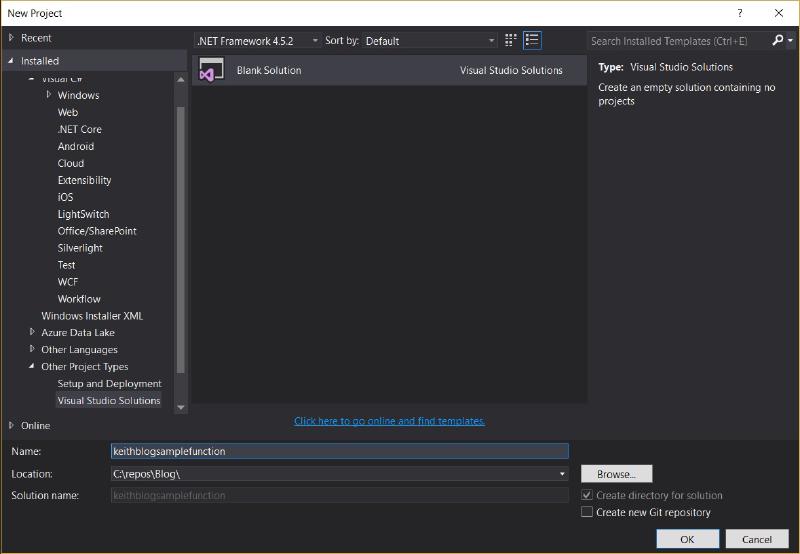
- Create a native Azure Function project (simplest approach) — copy the wwwroot contents into it and start debugging with F5.
- Create an empty ASP.Net Web Application following Microsoft’s recommendation to use class libraries.
Either way, you can debug locally using F5 and test with Postman using your local URL.
Conclusion#
We’ve gone from hosting our Hello World Function on Azure App Service to being able to develop and debug locally.
What’s next: